

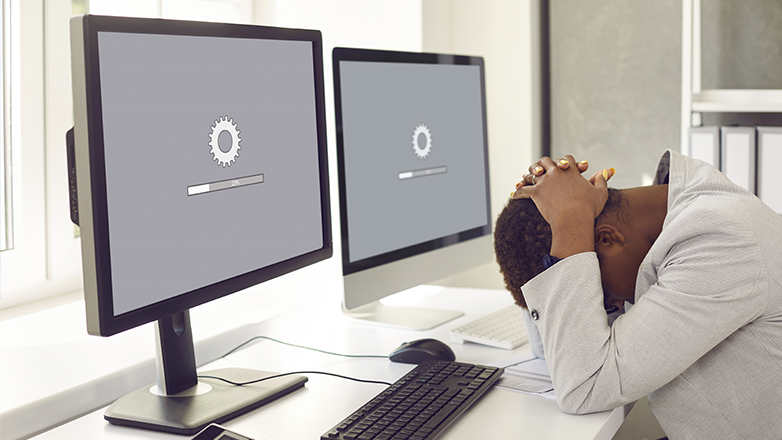
Is your computer running slower than usual? A sluggish PC is incredibly frustrating, making simple tasks take much longer than necessary. While buying a new computer seems like the easiest solution, there are many steps you take to speed up your existing machine before resorting to an expensive upgrade.
- Update your software
Software companies frequently release updates – not only to add new features but also to fix bugs and close security vulnerabilities. However, many users neglect to install these important updates. Failure to update Windows, web browsers, antivirus software, drivers, and other programs causes a gradual decline in system performance. Take the time to check for and install any available software updates, especially for Windows and your security software. Enable automatic updating wherever possible so you never miss a critical software patch. Updating all of your software improves compatibility issues and boosts system speed.
- Clean up your hard drive
Limited hard drive space will bog down a computer’s performance and make applications open much more slowly. Check your disk space under File Explorer in Windows or About This Mac in Mac OS X. If your hard drive is nearly full, take steps to free up space:
- Empty the Recycle Bin
- Remove programs you no longer use
- Back up photos and other media files to external storage
- Uninstall unused apps and browser extensions
- Delete temporary system files with Disk Cleanup or a third-party tool
Freeing up hard drive space prevents slowdowns when opening or using programs and improves overall system performance.
- Check for and remove malware
Viruses, spyware, and other malicious software are common on today’s PCs and significantly throttle performance. Make sure you have antivirus software installed and manually scan your computer periodically. Also, check for malware and unwanted browser extensions or plug-ins that slow things down. Uninstall or reset any dubious browser add-ons. Run scans with malware tools like Malwarebytes to locate and remove malware. Eliminating malware prevents it from over-consuming system resources and stealing your private data.
- Adjust visual effects
The visual effects in Windows are pleasing to the eye but resource hogs on older computers. Disabling some effects provides an instant performance boost. Open the Performance Options settings in Windows 10 or 7 and deselect all unnecessary visual elements. For maximum speed, choose “Adjust for best performance” or “Custom” and disable features like fade animations, transparency, and window shadows. Similarly, reduce transparency and other advanced graphics in Mac OS X under System Preferences > Accessibility. Toning down visual effects removes graphical strain from your computer.
- Add more ram
If your computer still seems sluggish after trying the above steps, low memory (RAM) is the issue. The more programs you run simultaneously, the more memory your computer needs. Upgrading your RAM provides an affordable boost to overall responsiveness and multitasking capability. Check how much RAM is installed, then purchase an affordable upgrade online. Adding more gigabytes of memory allows your computer to access data faster, run programs more efficiently, and see a notable speed improvement. Windowsguided identifies the following problems for resolution.
A slow computer dampens anyone’s productivity. Fortunately, troubleshooting lag and speeding up a sluggish PC is often free and straightforward.
